I suppose, given that we got a free day this year (Feb 29th), it might be considered a year since I last posted, but as it's not the 9th until tomorrow, I'm saying it's not quite. ;)
Anyway, yes, I've not been posting. As usually happens, work has been getting in the way (not that I'm complaining, I've shot some beautiful people over the last year and produced a good number of images I'm rather proud of).
I've been teaching some workshops too, and have also recently relaunched an old site under the new guise of learning photography, so I will generally be posting there from now on. I'll also be rewording and updating some of the stuff on here and shifting it over there in the form of new posts.
So, head on over to http://www.johnaldred.com/ and start following there instead. :)
Showing posts with label Video (General). Show all posts
Showing posts with label Video (General). Show all posts
Thursday, 8 March 2012


Wednesday, 9 June 2010
D300s Replacement/Firmware wishes
 After having read Philip Bloom's article Which Video DSLR to Buy, I've been having a bit more of a think about the video aspect of my D300s.
Please note that this article is based solely on the video capabilities (or lack thereof) of the D300s and while some of the features might be useful for stills photography too, that's not my focus here.
I've used the D300s alongside Sony EX1 and Z7 cameras for a few different projects now, and I've started to get a wishlist together of features it doesn't have that I personally feel are pretty essential. Some (all?) of these could probably be implemented as simple Firmware updates, and perhaps one day Nikon will wake up and implement them, but some may require hardware updates in order to be able to maintain processing speed.
The first one for me is a biggy. If no other feature were ever implemented, PLEASE Nikon, I beg of you, give us a live histogram on the liveview display. If this were added, I could continue to deal with the fact that the D300s has no manual control other than the aperture. At least with a live histogram I can zoom in on my Lastolite XpoBalance, let the camera meter, dial in some exposure compensation if necessary, then lock my exposure and know it's about right - I'd be a happy bunny, I'd be able to check via the histogram that my exposures are fairly consistent from shot to shot under different lighting conditions. Without this feature, it's pretty much hit and miss, and I'm only taking the camera's word for it that it's metered my 18% grey consistently from one situation to the next (and if I exceed the limits of the auto-ISO in video mode, then I know it's going to be underexposed - even if I can't actually tell that until I get the footage back onto the computer).
Leading on slightly from this, given that I'm currently having to use the 18% grey section of the XpoBalance to get the D300s to produce a (relatively) consistent exposure between shots, please let me spot meter in video mode. Being stuck in matrix metering mode means that I have to take my camera off the tripod, zoom in completely to my grey card so that it fills the screen, lock the exposure, and then move my camera back to its original position. Not a huge pain in the arse, but a pain none the less. Being able to spot meter an 18% grey card that's only taking up about 1/8th of my shot would be lovely, thank you.
Then there are the obvious ones. Only 24p? Come on now, not all of us live in the film world. Having to transcode 24p into 25p to burn out to DVDs is a step in my workflow that I'd rather not have to be honest with you. It never turns out as well as it would have if I simply had the option to record 25p in the first place, and trying to composite 24p footage with 25p motion graphics in a 25p composition in AfterEffects is just a nightmare. Please give us other framerates. 25p would be awesome and, to be fair to the Americans, let them have 29.976 too (my wife is American, so it'd be great if I could record 29.976 footage, and not have to run 24p footage through Twixtor or something to be able to mail her family a DVD). 50p and 60p are other obvious framerates that many of Nikon's competitors at similar and lower price points can already achieve,
720p. Ok, for some this one is massive. For me, it's not such a big deal (although it may become one by the time the D300s & D3s are replaced in Nikon's lineup). The vast majority of my projects for clients still end up on a PAL format progressive mode DVD, which are standard def. As such, shooting and editing in 720p and then scaling the final project down to 720x576 with a 1.42 pixel aspect ratio is not a huge issue. But, the future is just around the corner. Blu-Ray is actually getting affordable to the general population, even Youtube now supports 1080p high definition video file uploads, and monitors that are capable of 1920x1080 resolution are becoming increasingly more available in the local computer stores. It also means that even if I am still ending up with a DVD project, scaling down from 1080p instead of 720p will still provide a better end result.
Finally, please give us full manual control. Canon have several bodies at a similar or lesser price point than the D300s that offer full control over the aperture, shutter speed and ISO. Why can the D300s not do the same? Why has this not already been fixed in a firmware update?
Edit : Maybe not "finally". I know there was something else, but off the top of my head I don't recall quite what it was. :)
I know that the D3s does overcome some of these inadequacies in the D300s (live histogram and full manual control, for example), but I shouldn't have to go out and spend almost three times the price to be able to get these two minor, but essential, features, especially when the D3s still only records 720p.
At the moment, I'm debating my video future.
Do I continue to struggle with the D300s as merely a support camera for the EX1 with which I normally shoot?
Should I forget shooting on a DSLR entirely for now and just get the Letus Ultimate 35mm adapter so I can put my Nikon glass on the EX1?
Should I hold out and see what Nikon have to offer in the inevitable D400/D4 bodies?
Or do I just pick up a 5DMk2 & Nikon lens to EOS mount adapter and be done with it?
I'm thinking I'll just wait until the D400/D4 are released and see what they offer, but if Nikon can give me a D400 with 1080p, 24/25/30fps, full manual control and a live histogram, I'll take 2 please - if not, I'll probably be in the market for a couple of second hand 5DMk2 bodies and lens adapters.
Saturday, 5 June 2010
Online video streaming via iPhone?
After watching a few live streams over the past few weeks from Chase Jarvis, Philip Bloom and Chris Jones, I decided to do a little bit of research into what's currently available for online video streaming on the cheap.
In the past, several years ago, I'd used Microsoft's Windows Media Encoder, which was great for the intended uses at the time, as I knew all the end users watching the stream were running Windows. I could send out desktop captures, webcam feeds, live input from capture cards, or even saved pre-recorded videos that were already on my PC, and I could switch between them at will with a playlist.
Now, my intentions have changed, as have the capabilities of the audience. As well as the various non-Windows desktop operating systems out there (MacOS, Linux, etc), there are also mobile devices such as the iPhone, iPad, Android, etc., so sending out as a Windows Media stream is no longer really a viable option and nor is a Flash-only option if I want to keep iPhone and iPad visitors happy.
My initial goal was simply to find somewhere that I could stream live and recorded video at little-to-no cost that would be viewable on the iPhone. I hadn't really considered recording videos or streaming out from the iPhone, but it turns out I can do that to (hence this little blog post).
I've been taking a very close look at Ustream (as well as TwitCasting, but we'll get on to that later). Ustream has three different applications available via the iTunes store that can be used on the iPhone, iPod Touch and iPad in order to be able to utilise various features of the site.
The Ustream Viewer should (I'm assuming) work on any version of the iPhone, iPod Touch or iPad (if you know different, please post in the comments). It essentially allows you to view any live or pre-recorded feed full screen on your device, as well as search.
The Ustream Recorder lets you use your iPhone's camera (3GS only according to the info) in order to record video to your phone. Nothing new here, you can do that with the 3GS anyway, but it also allows you to review and manage your local and remote (on Ustream) videos, set tags and schedule uploads.
It will also allow you to import and upload videos previously recorded using the iPhone 3GS's default video recording application. You are also given the ability to upload to Youtube or Facebook and automatically post a tweet when the upload is complete.
Finally we get to the Ustream Live Broadcaster. Firing this up immediately presents you with a box asking whether you want to run in "Local" or "Live" mode.
Running in Local mode is not that much different to using the Ustream Recorder, except slightly more limited. Using the Recorder, you can touch the screen in order to select your focus & exposure point as you can when shooting stills normally with the iPhone; Using Live Broadcaster, you can't.
Running in Live mode, however, is very nice. It automatically (depending on your options) logs you into UStream, selects the channel, turns on your camera and gives you buttons to manage your remove and local videos, change your options, or start broadcasting.
Once broadcasting, you can start or stop a poll on the fly, mute or unmute your audio, send out a post to twitter (presumably announcing your feed), or stop the recording. A little status section at the top tells you for how long you've been broadcasting, and how many viewers are currently watching your feed.
It takes a minute for your feed to properly kick into action once you've got it started up, but once it's up and running, it happily chugs away with about 15 seconds of lag (my iPhone is connected to the net via WiFi, experiences and speeds will obviously vary depending on your iPhone's connection).
Upon completion of your stream, you are asked if you wish to save and announce the stream to Ustream, Facebook, Youtube and/or Twitter.
That's pretty much it. I don't plan on doing a whole lot of streaming from my iPhone out to the rest of the world, perhaps a few minutes here and there, but it's nice to know the ability's there if I ever need it. Now just to see how well it all works from the PC.
I also mentioned TwitCasting earlier. This is quite a neat little streaming app, which embeds your twitter feed below the video you're sending out. Not quite as useful as the Ustream applications, but something cool to play with if you just want to make some quick little video segments to post on Twitter. It will also allow you to save and store your recordings, although it won't allow you to stream/upload previously recorded videos.
Edit : I will be popping images up for this article within the next few days.
In the past, several years ago, I'd used Microsoft's Windows Media Encoder, which was great for the intended uses at the time, as I knew all the end users watching the stream were running Windows. I could send out desktop captures, webcam feeds, live input from capture cards, or even saved pre-recorded videos that were already on my PC, and I could switch between them at will with a playlist.
Now, my intentions have changed, as have the capabilities of the audience. As well as the various non-Windows desktop operating systems out there (MacOS, Linux, etc), there are also mobile devices such as the iPhone, iPad, Android, etc., so sending out as a Windows Media stream is no longer really a viable option and nor is a Flash-only option if I want to keep iPhone and iPad visitors happy.
My initial goal was simply to find somewhere that I could stream live and recorded video at little-to-no cost that would be viewable on the iPhone. I hadn't really considered recording videos or streaming out from the iPhone, but it turns out I can do that to (hence this little blog post).
I've been taking a very close look at Ustream (as well as TwitCasting, but we'll get on to that later). Ustream has three different applications available via the iTunes store that can be used on the iPhone, iPod Touch and iPad in order to be able to utilise various features of the site.
The Ustream Viewer should (I'm assuming) work on any version of the iPhone, iPod Touch or iPad (if you know different, please post in the comments). It essentially allows you to view any live or pre-recorded feed full screen on your device, as well as search.
The Ustream Recorder lets you use your iPhone's camera (3GS only according to the info) in order to record video to your phone. Nothing new here, you can do that with the 3GS anyway, but it also allows you to review and manage your local and remote (on Ustream) videos, set tags and schedule uploads.
It will also allow you to import and upload videos previously recorded using the iPhone 3GS's default video recording application. You are also given the ability to upload to Youtube or Facebook and automatically post a tweet when the upload is complete.
Finally we get to the Ustream Live Broadcaster. Firing this up immediately presents you with a box asking whether you want to run in "Local" or "Live" mode.
Running in Local mode is not that much different to using the Ustream Recorder, except slightly more limited. Using the Recorder, you can touch the screen in order to select your focus & exposure point as you can when shooting stills normally with the iPhone; Using Live Broadcaster, you can't.
Running in Live mode, however, is very nice. It automatically (depending on your options) logs you into UStream, selects the channel, turns on your camera and gives you buttons to manage your remove and local videos, change your options, or start broadcasting.
Once broadcasting, you can start or stop a poll on the fly, mute or unmute your audio, send out a post to twitter (presumably announcing your feed), or stop the recording. A little status section at the top tells you for how long you've been broadcasting, and how many viewers are currently watching your feed.
It takes a minute for your feed to properly kick into action once you've got it started up, but once it's up and running, it happily chugs away with about 15 seconds of lag (my iPhone is connected to the net via WiFi, experiences and speeds will obviously vary depending on your iPhone's connection).
Upon completion of your stream, you are asked if you wish to save and announce the stream to Ustream, Facebook, Youtube and/or Twitter.
That's pretty much it. I don't plan on doing a whole lot of streaming from my iPhone out to the rest of the world, perhaps a few minutes here and there, but it's nice to know the ability's there if I ever need it. Now just to see how well it all works from the PC.
I also mentioned TwitCasting earlier. This is quite a neat little streaming app, which embeds your twitter feed below the video you're sending out. Not quite as useful as the Ustream applications, but something cool to play with if you just want to make some quick little video segments to post on Twitter. It will also allow you to save and store your recordings, although it won't allow you to stream/upload previously recorded videos.
Edit : I will be popping images up for this article within the next few days.
Saturday, 30 January 2010
The Apple iPad Announcement
Steve Jobs officially announced the impending launch of the new Apple iPad a couple of days ago. This is the type of device I've been waiting to be released for a long time now. Smaller & lighter than a laptop, but something that could potentially provide me with certain features and abilities that I often use a laptop for when shooting photographs.

From watching the keynote speech announcing the product, and various demonstrations from many different important people at Apple showing off how incredible it apparently is, I still have a few questions. Some of them may be answered from reading up on the various sites I currently have open, but I still can't wait for it to hit the streets so I can check the answers first hand.
I'm not going to make any comparisons with the iPhone, partly because it's not intended to be a replacement, it's not a phone, but mostly because I don't own an iPhone. I skipped the whole iPhone thing because I'm perfectly happy with my Samsung Omnia.
As noted above, I do have some very specific requirements & uses in mind for a device such as this (from a photography aspect), and I'm going to list some of them here and see if I can find out if it's capable given the information currently available.
Instant image review while shooting
When shooting tethered to a laptop with the D300s (or any other Nikon body), my main concern is being able to see my results on a nicely calibrated display immediately (well, within a few seconds) in order to get a better idea of sharpness & focus, checking the white balance, and being able to more easily see potential problems that may crop up as I move flashes around my subject. Basically as a replacement for the camera's built-in LCD. The problem with shooting tethered is that my laptop does not have an IPS display, so I have to now hook it up to the HP LP2475w IPS monitor so I can get a nicely accurate display.
The iPad comes with a 9.7" LCD (yup, a bit smaller than my HP 24") with IPS technology (score!). If the iPad will allow me some way of shooting on the camera, and having it come up on the screen within a few seconds, then that will certainly fit the bill for me there, especially if shooting on location (kind of difficult to plug the HP into an electrical outlet in the middle of a field or a run down old building). How it might be able to do this I've yet to determine.
Overall review of images at the end of the day
This is something else I often use a laptop for, again usually hooked up to the HP monitor. Now, carrying around a big clunky monitor with me sort of negates the point of being "portable" with a laptop, so it's not something I prefer to do. Also, it can make things difficult and awkward at a client's place of business to walk in with a bunch of gear, extension cables, etc, trying to find a clear spot on a desk to set it all up.
So, holding the iPad in my arm and being able to flick (literally) through images right there is a big bonus. The only issue is how to (without a PC or laptop) transfer images from the camera to the iPad. The D300s can use both CompactFlash and SDHC, although the iPad has built in readers for neither of these.
Again, we have a similar issue as to above. How to get the iPad and the camera talking to each other. But, if it's doable, the iPad will have the advantage of being able to flip it around so that either landscape or portrait images would be able to fill the screen (sort of).
Review of video footage shot on the D300s
The fact that video footage is not shot in RAW, but an 8Bit motion JPG format, getting accurate white balance that much more critical when filming. I generally use a Lastolite XpoBalance card to preset my white balance beforehand, but perfect neutral lighting isn't always the effect you want to achieve depending on what you're shooting. The built in LCD on the D300s seems to shift white balance to some degree depending on the angle you're viewing the LCD from.
As it's difficult to cart around a 32" 720p TV everywhere when you film (which is what I often use when filming in the studio) the iPad could hopefully at least give me some form of relatively immediate review of my footage to double check lighting and white balance on the scene in a more accurate fashion than the LCD.
If there's a way to stream liveview out directly from the D300s, either via its HDMI or AV output to the iPad display, that would obviously be the most ideal solution, but I'm not getting my hopes up.
So that's really my main required features for a device like this. Instant image review while shooting stills, a quick solution to view video footage shot on the D300s on a larger and more accurate display, and to easily show a range of images to a client or model at the end of a shoot.
The only thing I've read so far is that it's not a widescreen display. This isn't such a big deal for the review of images (as they're 3:2 anyway), but the widescreen video is 16x9, so when the iPad is oriented horizontally, it's going to bring the size down quite a fair bit. Whether it's enough to care or not I'll just have to wait until I can get my hands on one to see for myself.
The iPad is expected to be released in the US within the next 60 days, with a 3G version coming out within the next 90 days. In the UK, 3G versions are expected to be available at some point in June. I haven't decided yet whether 3G is going to be something I'd want or need on this device (all versions contain 802.11n wireless networking), but it will really depend on the cost difference on the purchase of the device itself, as well as the various data package options available from the different mobile phone companies over here.
The iPad 3G is coming unlocked by default so that it can be used on any network, but due to a couple of different reasons, it appears it won't work on T-Mobile (my current mobile provider). Whether this is just limited to T-Mobile in the US or T-Mobile in the UK, or what other providers it may affect int he UK I don't know. Again, another one we're going to have to wait for to find out.
More to come on the iPad as I do some more research and figure out what it can and can't do to satisfy my needs.

I'm not going to make any comparisons with the iPhone, partly because it's not intended to be a replacement, it's not a phone, but mostly because I don't own an iPhone. I skipped the whole iPhone thing because I'm perfectly happy with my Samsung Omnia.
As noted above, I do have some very specific requirements & uses in mind for a device such as this (from a photography aspect), and I'm going to list some of them here and see if I can find out if it's capable given the information currently available.
Instant image review while shooting
When shooting tethered to a laptop with the D300s (or any other Nikon body), my main concern is being able to see my results on a nicely calibrated display immediately (well, within a few seconds) in order to get a better idea of sharpness & focus, checking the white balance, and being able to more easily see potential problems that may crop up as I move flashes around my subject. Basically as a replacement for the camera's built-in LCD. The problem with shooting tethered is that my laptop does not have an IPS display, so I have to now hook it up to the HP LP2475w IPS monitor so I can get a nicely accurate display.
The iPad comes with a 9.7" LCD (yup, a bit smaller than my HP 24") with IPS technology (score!). If the iPad will allow me some way of shooting on the camera, and having it come up on the screen within a few seconds, then that will certainly fit the bill for me there, especially if shooting on location (kind of difficult to plug the HP into an electrical outlet in the middle of a field or a run down old building). How it might be able to do this I've yet to determine.
Overall review of images at the end of the day
This is something else I often use a laptop for, again usually hooked up to the HP monitor. Now, carrying around a big clunky monitor with me sort of negates the point of being "portable" with a laptop, so it's not something I prefer to do. Also, it can make things difficult and awkward at a client's place of business to walk in with a bunch of gear, extension cables, etc, trying to find a clear spot on a desk to set it all up.
So, holding the iPad in my arm and being able to flick (literally) through images right there is a big bonus. The only issue is how to (without a PC or laptop) transfer images from the camera to the iPad. The D300s can use both CompactFlash and SDHC, although the iPad has built in readers for neither of these.
Again, we have a similar issue as to above. How to get the iPad and the camera talking to each other. But, if it's doable, the iPad will have the advantage of being able to flip it around so that either landscape or portrait images would be able to fill the screen (sort of).
Review of video footage shot on the D300s
The fact that video footage is not shot in RAW, but an 8Bit motion JPG format, getting accurate white balance that much more critical when filming. I generally use a Lastolite XpoBalance card to preset my white balance beforehand, but perfect neutral lighting isn't always the effect you want to achieve depending on what you're shooting. The built in LCD on the D300s seems to shift white balance to some degree depending on the angle you're viewing the LCD from.
As it's difficult to cart around a 32" 720p TV everywhere when you film (which is what I often use when filming in the studio) the iPad could hopefully at least give me some form of relatively immediate review of my footage to double check lighting and white balance on the scene in a more accurate fashion than the LCD.
If there's a way to stream liveview out directly from the D300s, either via its HDMI or AV output to the iPad display, that would obviously be the most ideal solution, but I'm not getting my hopes up.
So that's really my main required features for a device like this. Instant image review while shooting stills, a quick solution to view video footage shot on the D300s on a larger and more accurate display, and to easily show a range of images to a client or model at the end of a shoot.
The only thing I've read so far is that it's not a widescreen display. This isn't such a big deal for the review of images (as they're 3:2 anyway), but the widescreen video is 16x9, so when the iPad is oriented horizontally, it's going to bring the size down quite a fair bit. Whether it's enough to care or not I'll just have to wait until I can get my hands on one to see for myself.
The iPad is expected to be released in the US within the next 60 days, with a 3G version coming out within the next 90 days. In the UK, 3G versions are expected to be available at some point in June. I haven't decided yet whether 3G is going to be something I'd want or need on this device (all versions contain 802.11n wireless networking), but it will really depend on the cost difference on the purchase of the device itself, as well as the various data package options available from the different mobile phone companies over here.
The iPad 3G is coming unlocked by default so that it can be used on any network, but due to a couple of different reasons, it appears it won't work on T-Mobile (my current mobile provider). Whether this is just limited to T-Mobile in the US or T-Mobile in the UK, or what other providers it may affect int he UK I don't know. Again, another one we're going to have to wait for to find out.
More to come on the iPad as I do some more research and figure out what it can and can't do to satisfy my needs.
Monday, 18 January 2010
CS4 SD Widescreen Resolution (1024 vs 1050) Part 2 - Photoshop
 If you've read my original post on this topic, you'll know what I'm talking about, but if you haven't you may not, so go and have a read of it here. This one is relatively short and basically deals with producing graphics in Photoshop for SD Widescreen media (DVDs, Broadcast, etc) based of digital square pixel formats.
In Adobe After Effects CS4, the Pal DV Widescreen & 4:3 resolutions have been updated to conform with the appropriate standards for broadcast and video.
- SD 4:3 - 788x576 (formerly 768x576)
- SD Widescreen - 1050x576 (formerly 1024x576)
The resolution comes up as 1024x576, and if we click OK, we are confronted with a 1024x576 image, with our appropriate Action & Title Safe guides.
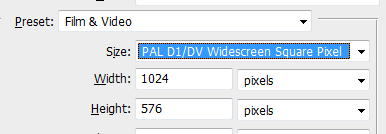
The obvious solution here is to simply type "1050" into the width box, and hey presto. You will get an appropriately sized image, however the problem with this is that you lose all of the safe guides that would normally be placed into the file automatically. The easiest way to create the appropriately sized document, but still retain the important guides is to simply adjust the Canvas Size (not the Image Size) from the Image menu and adjust the width from there to 1050 pixels.

This way, your guides stay at the appropriate action & title safe positions for 16:9 format display, but it extends your canvas to cover correct area. I've intentionally left the Background colour as black in this example so that you can more easily see what's happened. Obviously you would make the background colour to whatever suits your project best.

This clip is zoomed in a bit and is of just the top right corner so that you can more easily see the guides in relation to the edge of the canavas. Now our canvas extends an extra 13 pixels on both the left and right providing the full 1050 pixel width, but without moving or obliterating our action & title safe guides.
You could use this method each time you create a new graphics for SD DVD or TV usage, although personally I found it easier just to save it out as a PSD, set the attributes to read only, then load it up as and when needed to save any messing around.
As I said, there would be a couple of new posts on this subject and this is just one of them. The final (maybe) part of this will detail the resizing & "fixing" (or faking it) of HD footage to fit within this format, although this may take some time to get written up as I'll have to go out and shoot some footage. :)
Saturday, 16 January 2010
CS4 SD Widescreen Resolution (1024 vs 1050) Part 1 - After Effects
 Note : This post has turned out to be a long one, so go make a cup of coffee, sit back and have a read through.
 The CS4 suite has been out for a good while now, so some of you may have noticed this already and researched the reason for yourself, but I never really thought much of it before (I still use AE CS3 for many of my projects for compatibility reasons, so it's not really been a concern). But, now I got curious and came across a blog posting I thought might make for interesting reading, and it explains the reasons for what I'm about to mention far more adequately than I could've done.
If you've used Adobe After Effects in the past to produce PAL format SD Widescreen productions, projects that may be used on the web as well as burned out to DVD, you may have done as I often do myself.
That is to create the project in After Effects with compositions using the "PAL D1/DV Widescreen Square Pixel" preset. In AE CS2 & CS3 (and probably earlier), that format has always come up as 1024x576, a perfectly respectable 16:9 ratio. Then nest that inside a "PAL D1/DV Widescreen" composition, right click, choose "Transform" then "Fit to Comp" (or ALT+Ctrl+F). That way, you can render out the square pixel composition with your fancy h.264 codec for the web and render out the non-square pixel composition using MPG2 for DVD usage, while retaining (imho) the maximum quality for both formats.
Well, thanks to CS4, it turns out we've been doing it wrong all this time. :)
When you create a "PAL D1/DV Widescreen Square Pixel" composition in AE CS4, the actual dimensions are now 1050x576.
"What? What is this madness? That's not 16:9!" I hear you cry.
Well, rather than try to explain it here without reproducing a lot of information in the post I'm about to link, I'll just link the post.
Now that it's all been explained, 1050x576 makes complete sense and we really have been doing it wrong all this time.
As mentioned earlier, I've always right clicked the nested square pixel comp and set it to fit perfectly inside the 720x576 non-square pixel composition to burn out for DVD, but this doesn't entirely fix the problem. It will make that square pixel comp fit the entire frame, thereby solving the problem of vertical black bars on either side of the footage, but as there are 13 pixels missing from either side of the square pixel composition it does stretch it just very slightly when played back from DVD. This may not be immediately noticable, but it is there and the camera already adds enough pounds as it is, or so they say, without making your actors even wider.
So, what does this really mean? As far as my personal workflow goes, it just means that I'll now be creating three compositions instead of two.
- Master Composition : 1050x576 PAL D1/DV Widescreen Square Pixel
- Web Composition : 1024x576 Square Pixels (exactly the same as the CS3 WS Square preset)
- DVD Composition : 720x576 PAL D1/DV Widescreen
This Master will then be nested inside the "Web Composition". This is a true 16:9 format composition which can then be uploaded to Youtube, Vimeo, hosted on your own website or wherever. The left and right edges of our frames will be cropped by 13 pixels each, which isn't really a problem if you obey the "Action Safe" guidelines.
The Master is also nested inside our 3rd compostion, the "DVD Composition". This is 720x576 pixels, so it's already set appropriately (remember, without the little extra on the side, it's actually 702 pixels wide, so this width has always been correct in past versions of AE, as far as I know).
And that's pretty much that, for now, although below are a few links with some more information about pixel aspect ratios and accurate dimensions when working on SD projects (HD projects aren't affected directly, but they are if you intend to ultimately go out to DVD or SD broadcast).
- AE CS4 Pixel aspect ratio and frame aspect ratio @ Adobe.com
- Commissioning - A Guide to Picture Size @ The BBC
A big thank you to Mike Afford for the enlightening information.
Sunday, 10 January 2010
Converting Framerates in AE
Any of you who have been into video editing for more than 10 minutes I'm sure will be aware of the incredible information and tutorials created by Andrew Kramer over at VideoCopilot. I went back to one tutorial in particular recently due to the Nikon D300s shooting at 24fps, and the PAL standard being 25fps.Now, you could simply place your 24fps footage into a 25fps timeline (or 30fps, for those of you on the other side of the Atlantic) and have it automatically work itself out for you, but more than likely you're going to be getting duplicated frames, resulting in jerky video. This is where Andrew's "Frame Rate Converter" tutorial comes to the rescue.
All of the techniques shown can be done manually using a calculator and AfterEffects' built-in plugins (the "Timewarp" effect in this case), but there is a preset included with the tutorial that just helps to speed things up a bit and save a few headaches. Andrew demonstrates in the tutorial how to recreate the preset for yourself if you don't want to download it.
As you're generally adding frames to D300s footage (going from 24fps to 25 or 30 fps) pay particular attention to what he says about "motion vector artifacts" at around the 8m 30s mark, but do watch the whole thing so you can fully understand what it's doing.
Thursday, 7 January 2010
Ok, so I lied a bit
 Originally this was just going to be a photo blog, but as my wife got me the D300s for Christmas I've been wanting to try a few video projects with it to see how well it handles compared to something like the Sony PMW-EX1 (now replaced in Sony's line-up by the PMW-EX1R) or HVR-Z7E. Over the coming weeks and months, I'll be using the D300s in certain situations where I might normally use the EX1 or Z7 cameras.
There are a few obvious differences. The Sony EX1 is a dedicated Full HD (1920x1080) video camera that just about meets broadcast requirements, the D300s is not, it records "HD Ready" at 24fps 720p only (the Z7 is not full HD either, it's HDV, 1440x1080, but it does provide 720p @ 50fps just like the EX1). The EX1 requires I spend a fortune on an adapter to mount my Nikon lenses, the D300s obviously does not. While both cameras use CMOS sensors, the EX1 has three of them, whereas the D300s has one. While they both suffer from rolling shutter issues to some degree (a simple fact of CMOS sensors), the effect is much less obvious on the EX1 than it is on the D300s. The EX1 has full manual control when shooting video, and the D300s does not (although there are some slight workarounds, as you can set the aperture manually in tripod mode and lock exposure). There are other differences, but I'll address each one as they come up in future blog posts.
One of the biggest issues for me is the length of time the D300s can capture in a single clip. As the EX1 is a camera specifically designed for video, it does not have a maximum length of a single shot (handy for events and other live recordings that can't be repeated) and with dual card slots, there's no interruption for endless shooting as long as the camera has power. The D300s has a limit of 5 minutes per clip when shooting HD video, so it's not really all that good for events, except as a support camera when using the EX1 as the main camera.
For something like a corporate promo or a short film where you're shooting clips rarely lasting more than a couple of minutes, it's not really an issue. In that situation, even on the EX1, you're still shooting clips only lasting a minute or two and then editing them all together in post.
I'll wrap it up here, before I ramble on too much more, as this post was really just to let you know what I was planning for the future. As projects come up that allow me to experiment a bit with the D300s video abilities, I'll pop up posts with techniques, observations, any problems that may arise and how to overcome them (if even possible).
Subscribe to:
Posts (Atom)


 Posts
Posts


